Build a Motion-Activated Light with Raspberry Pi
What if you could walk into a room and have the light come on — automatically, no switch, no app?
That's exactly what a PIR (Passive Infrared) motion sensor does. It detects the heat signature of a person moving through its field of view, and sends a signal to the Raspberry Pi. The Pi then activates a relay — an electronically controlled switch — to turn on a light.
This project introduces a completely different platform: the Raspberry Pi, a full Linux computer the size of a credit card. Instead of the Arduino IDE and C++, you'll write Python. Instead of loop() running forever, you'll use event-driven programming. And instead of simple components, you'll control a relay — which in a real-world application could switch on an actual lamp, a fan, or any other appliance.
We'll keep it safe: our "lamp" will be an LED. But the principles are identical to what commercial motion-sensing lights use.
Let's build.
What You'll Need
- Raspberry Pi (any model with GPIO pins — Pi 3, Pi 4, Pi 5, or Pi Zero W all work)
- Micro SD card with Raspberry Pi OS installed
- Power supply for your Pi
- Monitor, keyboard, mouse (or SSH access if you prefer headless setup)
- 1 × PIR motion sensor (HC-SR501 — the most common module with the white dome)
- 1 × Relay module (single-channel, 5V, with optocoupler — very common in kits)
- 1 × 5mm LED (any color)
- 1 × 220Ω resistor
- Jumper wires (female-to-female for the Pi's GPIO header)
- A breadboard (for the LED circuit)
If you've used a Raspberry Pi before, you're probably already set up with the OS. If not, the Raspberry Pi Imager makes it easy — download it, flash Raspberry Pi OS to your SD card, and boot.
Arduino vs. Raspberry Pi: What's Different?
You might wonder why we're switching platforms. The Arduino and Raspberry Pi are designed for different things, and understanding when to use each is an important skill.
The Arduino is a microcontroller. It runs one program, starts instantly, directly controls hardware, and excels at real-time tasks (reading sensors, generating precise timing signals). But it has no operating system, no file system, and limited memory.
The Raspberry Pi is a full computer. It runs Linux, supports Python (and many other languages), has networking built in, can run multiple programs simultaneously, and handles complex logic easily. But it's not as precise for real-time hardware control, and it needs to boot up before it's ready.
For this project, either platform could work. We're using the Pi because it introduces you to Python-based hardware control and event-driven programming — skills that transfer directly to home automation, robotics, and IoT.
Know Your Components
The PIR Sensor (HC-SR501)
PIR stands for Passive Infrared. The sensor doesn't emit anything — it passively detects the infrared radiation (heat) that all warm bodies emit. When something warm moves through its field of view, the sensor registers the change and sets its output pin HIGH.
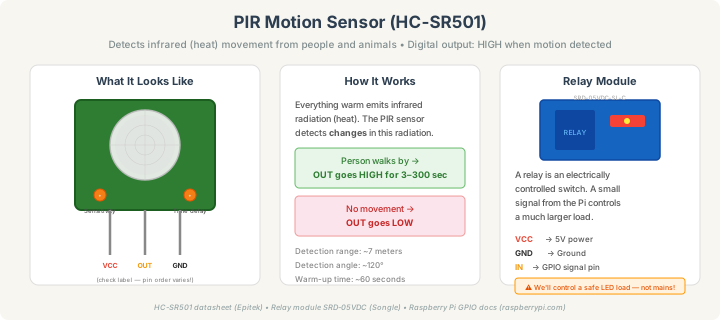
The HC-SR501 module has two orange adjustment knobs on the board:
- Sensitivity — turn clockwise to increase the detection range (up to about 7 meters)
- Time delay — controls how long the output stays HIGH after motion is detected (3 seconds to 5 minutes)
For our project, set the time delay to minimum (fully counter-clockwise) — we'll control the timing in code instead.
Important: the PIR sensor needs about 60 seconds to warm up when first powered on. During this time, it may trigger randomly. Your code should account for this.
The Relay Module
A relay is an electrically controlled switch. When the Pi sends a signal to the relay's input pin, an electromagnet inside clicks a physical switch from "open" to "closed" — completing a circuit.
The relay module has two sides:
Control side (connects to the Pi): VCC (5V power), GND (ground), and IN (signal from GPIO).
Load side (the thing being switched): Three screw terminals labeled COM (Common), NO (Normally Open), and NC (Normally Closed). We'll use COM and NO — which means the circuit is open (off) by default and closes (turns on) when the relay activates.
Safety note: Relay modules can switch high-voltage AC loads like mains-powered lamps, but we will not be doing that in this tutorial. We're switching a low-voltage LED circuit. If you ever want to control mains electricity, please research proper safety procedures or use a purpose-built smart switch.
Understanding GPIO Pins
GPIO stands for General Purpose Input/Output. These are the 40 pins along the edge of the Raspberry Pi board. Each pin can be configured as either an input (reading sensors) or an output (controlling LEDs, relays, etc.).
We'll use two GPIO pins:
- GPIO17 (physical pin 11) — input from the PIR sensor's OUT pin
- GPIO27 (physical pin 13) — output to the relay module's IN pin
There's an important distinction on the Pi: GPIO number vs physical pin number. GPIO17 is the 17th GPIO, but it's the 11th physical pin on the board. We always use GPIO numbering (also called BCM mode) in code. If you're unsure, the website pinout.xyz has an excellent interactive reference.
The Pi's GPIO pins operate at 3.3V — and unlike the Arduino, they are not 5V tolerant. Never connect 5V directly to a GPIO pin. The PIR sensor's output is typically 3.3V, so it's safe. The relay module's VCC connects to the Pi's 5V pin (which is a power output, not a GPIO pin).
Wiring It Up
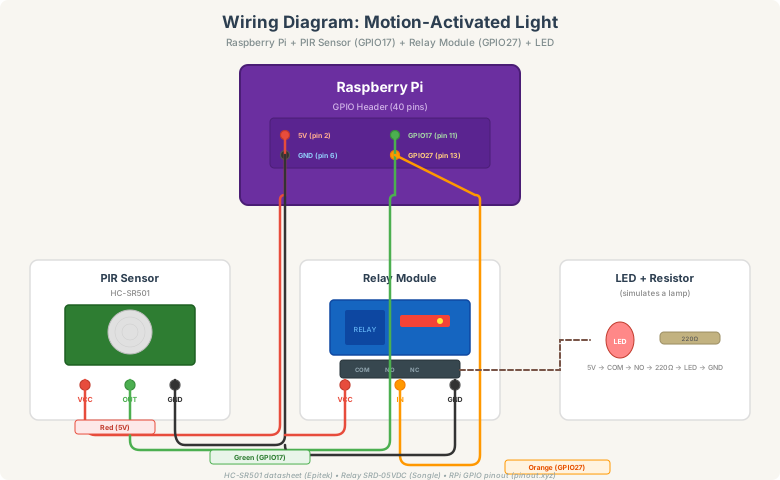
PIR sensor (3 wires)
Red wire: PIR VCC → Pi 5V (physical pin 2)
Green wire: PIR OUT → Pi GPIO17 (physical pin 11)
Black wire: PIR GND → Pi GND (physical pin 6)
Check the labels on your PIR module — the pin order varies between manufacturers. The most common order is VCC, OUT, GND.
Relay module (3 wires)
Red wire: Relay VCC → Pi 5V (can share the same 5V pin or use pin 4)
Orange wire: Relay IN → Pi GPIO27 (physical pin 13)
Black wire: Relay GND → Pi GND (can share with the PIR)
LED load (connected through relay)
The LED simulates a lamp that the relay switches on and off:
- Connect a wire from the Pi's 5V to the relay's COM terminal
- Connect a wire from the relay's NO terminal to one leg of the 220Ω resistor
- Connect the other leg of the resistor to the LED's anode (longer leg)
- Connect the LED's cathode (shorter leg) to Pi GND
When the relay activates, it connects COM to NO, completing the LED circuit. When it deactivates, the circuit breaks and the LED turns off.
The Code
On the Raspberry Pi, open a terminal and create a new Python file:
nano motion_light.py
Paste this code:
import RPi.GPIO as GPIO
import time

PIR_PIN = 17
RELAY_PIN = 27

GPIO.setmode(GPIO.BCM)
GPIO.setup(PIR_PIN, GPIO.IN)
GPIO.setup(RELAY_PIN, GPIO.OUT, initial=GPIO.LOW)

print("Motion-Activated Light")
print("Warming up PIR sensor (60 seconds)...")
time.sleep(60)
print("Sensor ready. Watching for motion...")

try:
    while True:
        if GPIO.input(PIR_PIN) == GPIO.HIGH:
            print("Motion detected! Light ON")
            GPIO.output(RELAY_PIN, GPIO.HIGH)
            time.sleep(10)
        else:
            GPIO.output(RELAY_PIN, GPIO.LOW)
        time.sleep(0.1)

except KeyboardInterrupt:
    print("\nStopping...")

finally:
    GPIO.output(RELAY_PIN, GPIO.LOW)
    GPIO.cleanup()
    print("GPIO cleaned up. Goodbye!")
Save with Ctrl+O, Enter, then exit with Ctrl+X.
Run it:
python3 motion_light.py
After the 60-second warm-up, walk past the sensor — you should hear the relay click and see the LED turn on. It stays on for 10 seconds after the last motion, then turns off.
Understanding the code
GPIO.setmode(GPIO.BCM) — Use GPIO numbers (BCM scheme) rather than physical pin numbers. This is the standard convention in Python GPIO programming.
GPIO.setup(PIR_PIN, GPIO.IN) — Configure GPIO17 as an input to read the PIR sensor's digital output.
GPIO.setup(RELAY_PIN, GPIO.OUT, initial=GPIO.LOW) — Configure GPIO27 as an output, starting LOW (relay off). The initial parameter ensures the relay doesn't activate during setup.
time.sleep(60) — Wait for the PIR sensor to stabilize. The HC-SR501 needs this warm-up period to establish a baseline reading of the room's infrared environment.
if GPIO.input(PIR_PIN) == GPIO.HIGH — Read the PIR sensor. HIGH means motion was detected.
GPIO.output(RELAY_PIN, GPIO.HIGH) — Activate the relay, which closes the switch and powers the LED.
time.sleep(10) — Keep the light on for 10 seconds. This is our software-controlled timeout, independent of the PIR's hardware delay (which we set to minimum).
except KeyboardInterrupt — Catches Ctrl+C so you can stop the program cleanly.
GPIO.cleanup() — Resets all GPIO pins to their default state. Always do this when your program exits — it prevents pins from being left in unexpected states.
An Improved Version with Edge Detection
The basic version works, but it polls the sensor in a loop. Here's a more sophisticated version that uses edge detection — the Pi's hardware watches the pin and calls a function only when the state changes:
import RPi.GPIO as GPIO
import time
import datetime

PIR_PIN = 17
RELAY_PIN = 27
LIGHT_DURATION = 15

GPIO.setmode(GPIO.BCM)
GPIO.setup(PIR_PIN, GPIO.IN)
GPIO.setup(RELAY_PIN, GPIO.OUT, initial=GPIO.LOW)

last_motion_time = 0

def motion_detected(channel):
    global last_motion_time
    now = time.time()
    timestamp = datetime.datetime.now().strftime("%H:%M:%S")
    print(f"[{timestamp}] Motion detected!")
    last_motion_time = now
    GPIO.output(RELAY_PIN, GPIO.HIGH)

print("Motion-Activated Light (Edge Detection)")
print("Warming up PIR sensor (60 seconds)...")
time.sleep(60)
print("Ready! Press Ctrl+C to stop.\n")

GPIO.add_event_detect(PIR_PIN, GPIO.RISING, callback=motion_detected, bouncetime=2000)

try:
    while True:
        if last_motion_time > 0:
            elapsed = time.time() - last_motion_time
            if elapsed >= LIGHT_DURATION:
                GPIO.output(RELAY_PIN, GPIO.LOW)
                timestamp = datetime.datetime.now().strftime("%H:%M:%S")
                print(f"[{timestamp}] No motion for {LIGHT_DURATION}s — light OFF")
                last_motion_time = 0
        time.sleep(0.5)

except KeyboardInterrupt:
    print("\nStopping...")

finally:
    GPIO.output(RELAY_PIN, GPIO.LOW)
    GPIO.cleanup()
    print("Cleaned up. Goodbye!")
GPIO.add_event_detect() tells the Pi's hardware to watch for a RISING edge (LOW → HIGH transition) on the PIR pin and call motion_detected() when it happens. The bouncetime=2000 parameter ignores any triggers within 2 seconds of each other, preventing rapid-fire activations.
This approach is more efficient — instead of checking the pin hundreds of times per second, the Pi only responds when something actually changes. It's the same pattern used in professional home automation systems.
Troubleshooting
Relay clicks but LED doesn't light up. Check the LED polarity (longer leg = anode = positive) and verify the relay's NO and COM terminals are connected correctly. Test the LED separately by connecting it (with the 220Ω resistor) directly between 5V and GND.
PIR triggers constantly, even without movement. The sensor is still warming up, or the sensitivity is too high. Turn the sensitivity knob counter-clockwise and wait a full 60 seconds after powering on. Also avoid pointing the sensor at heat sources like radiators or windows with direct sunlight.
Nothing happens at all.
Run python3 -c "import RPi.GPIO" to confirm the GPIO library is installed. If you get a permission error, try running with sudo python3 motion_light.py. On newer Pi OS versions, you may need to install RPi.GPIO with sudo apt install python3-rpi.gpio.
Relay doesn't click. The relay module might need 5V on VCC but the logic trigger could be 3.3V-compatible (most optocoupler modules are). Check with a multimeter that 5V reaches the relay's VCC pin. Also test the GPIO pin with a simple LED blink script to confirm it's outputting correctly.
"RuntimeWarning: This channel is already in use".
This means a previous run didn't clean up. Add GPIO.setwarnings(False) after GPIO.setmode(), or make sure GPIO.cleanup() runs when your program exits.
Make It Your Own
Adjustable timeout: Add a potentiometer on an ADC (like the MCP3008) to let users adjust the light duration with a physical knob.
Night-only mode: Add an LDR (like the one from the earlier nightlight project) and only activate the relay when it's both dark AND motion is detected.
Activity log: Write each motion event with a timestamp to a CSV file. Over time, you'll build a picture of when rooms are most active.
Email or push notification: Use Python's smtplib to send an email when motion is detected, or integrate with services like Pushover or IFTTT for phone notifications.
Multiple zones: Add more PIR sensors on different GPIO pins to cover different rooms, each controlling its own relay.
Run on boot: Add the script to the Pi's startup sequence so it runs automatically when the Pi powers on — no monitor or keyboard needed. Add this to /etc/rc.local: python3 /home/pi/motion_light.py &
What You Just Learned
This project introduced a fundamentally different way of building electronic projects. You used the Raspberry Pi — a full computer running Linux — instead of a microcontroller. You wrote Python instead of C++, using a language that offers powerful abstractions and a massive ecosystem of libraries. You learned about GPIO pins and the BCM numbering scheme. You used a PIR motion sensor that detects infrared heat changes, and a relay module that acts as an electronically controlled switch. And you explored edge detection, a hardware-supported technique that's more efficient and responsive than polling.
The Raspberry Pi opens up projects that would be complex or impossible on an Arduino alone — anything involving networking, databases, image processing, machine learning, or running multiple services simultaneously. And yet the GPIO interface keeps things hands-on and physical. It's the best of both worlds.
Part of the Arduino Intermediate series. Previous: Temperature & Humidity Monitor (Arduino Uno) • Wi-Fi Weather Station (ESP8266) • Beginner series: Basics • First Blink • LED + Resistor • Auto-Nightlight
Need tools for your Pi projects? Check out the best tools for Raspberry Pi. And for more project inspiration, browse our top Raspberry Pi project ideas.