Arduino for Beginners: Understanding the Basics Before You Build
So you've heard about Arduino. Maybe a friend showed you a blinking LED, or you stumbled across a YouTube video of someone who built a plant-watering robot. And now you're curious — but also maybe a little intimidated. Circuit boards? Wiring? Code?
Take a breath. I promise it's simpler than it looks.
I've spent years working in R&D, leading teams that build complex electronic systems. And here's a secret: every single one of those systems is built from the same basic building blocks I'm about to walk you through. Once you understand these fundamentals, the rest is just creative assembly.
Let's start from the very beginning.
What Is Arduino, Really?
Think of Arduino as a tiny, programmable brain. It's a small circuit board — about the size of a credit card — that you can teach to do things. Turn on a light. Read the temperature. React to a sound. Move a motor.
The most common board for beginners is the Arduino Uno. When you look at it, you'll notice a bunch of metal holes along the edges (those are called pins), a USB port, and a power jack. That's about it. Nothing scary.
The magic is that you connect things to those pins — sensors, lights, buttons — and then write simple instructions telling the board what to do with them. That's it. That's the whole concept.
The Breadboard: Your Friendly Playground
Before we talk about components, let me introduce you to your new best friend: the breadboard.
A breadboard is a white (or sometimes transparent) plastic board full of tiny holes. Its job is to let you connect electronic components together without soldering. You just push wires and components into the holes, and the breadboard handles the connections underneath.
But those holes aren't random — there's a hidden pattern beneath the surface, and once you understand it, everything clicks. Take a look at this diagram:
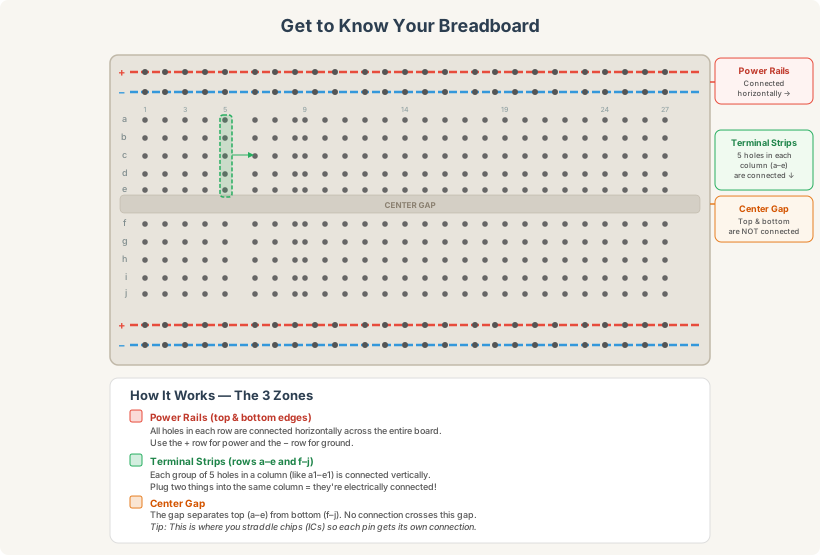
There are three zones you need to know about:
The Power Rails run along the top and bottom edges of the board. You'll spot them by the red (+) and blue (−) lines. Every hole along a power rail row is connected horizontally across the entire board. Think of them as a highway — you connect your power source here once, and then any component on the board can tap into it. Red is for positive voltage, blue is for ground. Easy.
The Terminal Strips are the main grid of holes in the middle, labeled with rows (a through j) and numbered columns. Here's the key: each vertical group of five holes in a column is connected internally. So holes a1, b1, c1, d1, and e1 are all linked together beneath the surface. If you plug a wire into b1 and an LED leg into d1, they're electrically connected — no wire between them needed. This is the magic of the breadboard.
The Center Gap runs right down the middle and splits the terminal strips into a top half (rows a–e) and a bottom half (rows f–j). Nothing crosses this gap. The top five and bottom five are completely independent. This might seem odd, but it's actually by design — it's where you straddle integrated circuit chips (ICs) so that each pin gets its own set of connections.
One thing that trips up beginners: the power rails don't automatically connect to the terminal strips. You need to use jumper wires to bring power from the rails to the specific columns where your components need it. Think of the rails as the water main and the jumper wires as the pipes to each house.
That's genuinely all you need to know to start. Push things in, and the breadboard connects them.
Meet Your First Components
Let's go through the handful of parts you'll use in almost every beginner project.
LEDs (Light Emitting Diodes) — These are tiny lights. They come in different colors and have two legs: one longer (positive) and one shorter (negative). The leg length matters — plug them in the wrong way and they simply won't light up. No damage, just no light.
Resistors — These are small, tube-shaped components with colored stripes. Their job is to resist the flow of electricity, which protects your other components. Think of them like a valve on a garden hose — they control how much current flows through. Almost every LED circuit uses a resistor to prevent the LED from burning out.
Wires (Jumper Wires) — These are simply short, colorful wires with pins on each end. They connect your components to each other and to the Arduino. The colors don't mean anything electrically — but most people use red for power and black for ground as a helpful habit. I'd strongly suggest you adopt this convention from day one.
Push Buttons — A simple switch. Press it and electricity flows. Release it and the flow stops. These let you add interactivity — like telling your Arduino "do something when I press this."
Sensors — These are components that detect something in the real world: light, temperature, motion, sound, distance. A photoresistor, for example, changes its resistance based on how much light hits it. This is how your Arduino can "sense" the environment around it.
How They All Connect
Here's where it clicks — literally.
Every circuit is essentially a loop. Electricity flows out of the Arduino through a pin, passes through your components, and returns to the Arduino through ground. If the loop is broken anywhere, nothing works. If the loop is complete, you're in business.
Let's walk through a simple example: lighting up an LED.
- A wire goes from one of the Arduino's numbered pins (say, pin 13) to the breadboard
- On the breadboard, that wire connects to a resistor
- The other end of the resistor connects to the long leg of the LED
- The short leg of the LED connects back to the Arduino's GND (ground) pin
That's a complete loop. The Arduino sends electricity out through pin 13, the resistor controls the flow, the LED lights up, and the current returns through ground. Simple as that.
Everything you'll ever build with Arduino — from a temperature display to a robot car — follows this same principle. Power goes out, passes through components that do something interesting, and returns to ground.
A Word About the Code (Don't Panic)
I won't go deep into code in this article, but I do want to demystify it.
Arduino uses a simplified version of C/C++, and every program (called a sketch) has two main sections:
setup() runs once when the board powers on. This is where you tell Arduino which pins you're using and what they should do (send power out, or listen for input).
loop() runs over and over again, forever. This is where the action happens — check a sensor, turn on a light, wait a moment, repeat.
A basic sketch to blink an LED is about six lines long. That's not a typo — six lines, and you've given a machine instructions. There's something deeply satisfying about that.
What You Actually Need to Get Started
If you're ready to move from reading to doing, here's the bare minimum you need:
An Arduino Uno board (or a compatible clone — they work just as well), a USB cable to connect it to your computer, a breadboard, a few jumper wires, a couple of LEDs, a couple of 220Ω resistors, and the free Arduino IDE software installed on your computer. That's it. Many online stores sell beginner kits that bundle all of this together for a reasonable price.
The Most Important Thing
Here's what I tell everyone who's just starting out: you won't break anything. Seriously. The most likely outcome of wiring something wrong is that it simply won't work. You'll double-check your connections, find the mistake, fix it, and feel like a genius.
Electronics can look intimidating from the outside, but once you build your first working circuit — even if it's just a single LED turning on — something shifts. You realize you can do this.
And from there, it only gets more fun.
This is the first in a series about getting started with Arduino. Next up: your first hands-on project — making an LED blink and understanding the code behind it.
Wondering what tools you'll need? Check out the best tools for Arduino projects. And if you just got a starter kit, here's how to get the most out of it.
Got a free afternoon? Here are 5 projects you can finish in 2 hours, starting from where this guide leaves off.