Build a Temperature & Humidity Monitor with Arduino
What if your Arduino could tell you the temperature and humidity of the room — right now, on a little screen, updating live?
That's what we're building. A DHT11 sensor reads the environment, and a 16×2 LCD displays the results in real time. No computer needed once it's running — just the Arduino, the sensor, and the screen.
This project introduces two concepts that unlock a huge range of future possibilities: external libraries (pre-written code that handles complex sensors for you) and I2C communication (a protocol that lets you connect displays, sensors, and other devices using just two wires). Once you understand these, you'll be able to work with dozens of different components — all using the same patterns.
Let's build.
What You'll Need
- Arduino Uno board (or compatible clone)
- USB cable (Type A to Type B)
- 1 × DHT11 temperature and humidity sensor (the 3-pin module version is easiest — it has a built-in pull-up resistor)
- 1 × 16×2 LCD display with I2C backpack (a small green board soldered to the back of the LCD)
- 4 × jumper wires (male-to-female if your LCD has header pins)
- A computer with the Arduino IDE installed
The DHT11 module and I2C LCD are standard components in most intermediate Arduino kits. If you're buying separately, make sure the LCD has the I2C adapter already soldered on — without it, you'd need 12+ wires instead of 4.
Know Your Components
The DHT11 Sensor
The DHT11 is a small blue sensor that measures both temperature and humidity in a single package.
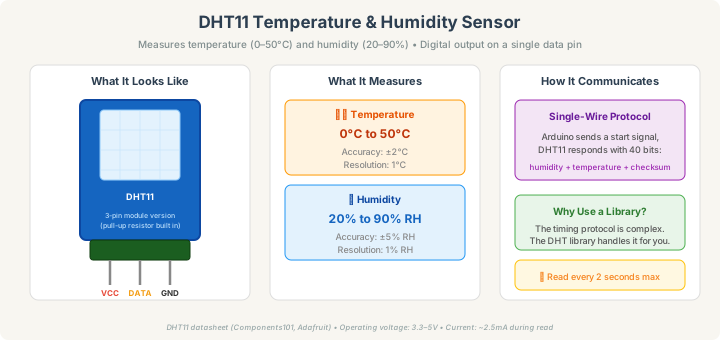
The 3-pin module version has VCC (power), DATA (signal), and GND (ground). Inside, a thermistor measures temperature and a capacitive sensor measures humidity. The sensor converts these readings into a digital signal and sends it to the Arduino over a single wire using a timing-based protocol.
You don't need to worry about the protocol — a library handles all of that. But it's worth knowing that the DHT11 is slow by sensor standards: it can only provide a new reading every 2 seconds. That's perfectly fine for a room monitor, but you wouldn't use it for something that changes rapidly.
Practical limits: 0–50°C temperature range, 20–90% humidity, ±2°C accuracy. It won't give you lab-grade measurements, but it's reliable enough to know whether your room is comfortable.
The I2C LCD
A standard 16×2 LCD has 16 pins and requires a tangle of wires. The I2C backpack — a tiny circuit board soldered to the back — reduces that to just 4 pins: VCC, GND, SDA, and SCL.
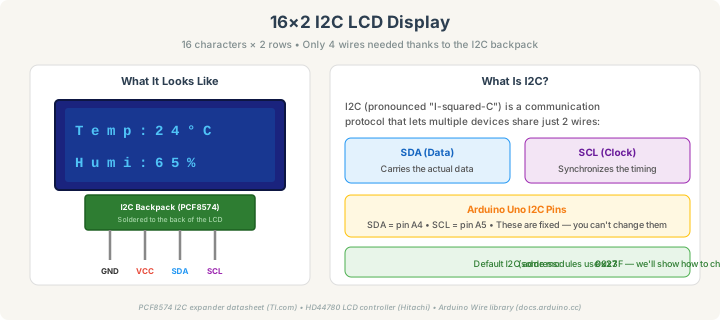
I2C (pronounced "I-squared-C") is a communication protocol that lets multiple devices share just two data wires:
- SDA (Serial Data) — carries the actual data back and forth
- SCL (Serial Clock) — provides a timing pulse so both sides stay synchronized
On the Arduino Uno, the I2C pins are fixed: SDA is always A4 and SCL is always A5. You can't choose different pins — the hardware is wired that way internally.
Each I2C device has a unique address — a number that identifies it on the shared bus. Most I2C LCD modules use address 0x27, though some use 0x3F. We'll show you how to find yours if the default doesn't work.
Installing the Libraries
This project uses two external libraries. Here's how to install them in the Arduino IDE:
- Go to Sketch → Include Library → Manage Libraries (or click the Library Manager icon in IDE 2.x)
- Search for "DHT sensor library" by Adafruit — click Install. If prompted to install dependencies (like Adafruit Unified Sensor), click Install All
- Search for "LiquidCrystal I2C" by Frank de Brabander — click Install
That's it. Libraries are pre-written code packages that handle complex protocols and sensor communication. Instead of writing hundreds of lines to decode the DHT11's timing-based signal or drive the LCD's controller chip, you call simple functions like dht.readTemperature() and lcd.print(). This is how most real-world Arduino projects work.
Wiring It Up
This project has two independent circuits that both connect to the Arduino: the DHT11 sensor (3 wires) and the I2C LCD (4 wires). There's no breadboard needed — everything connects directly to the Arduino's pins.
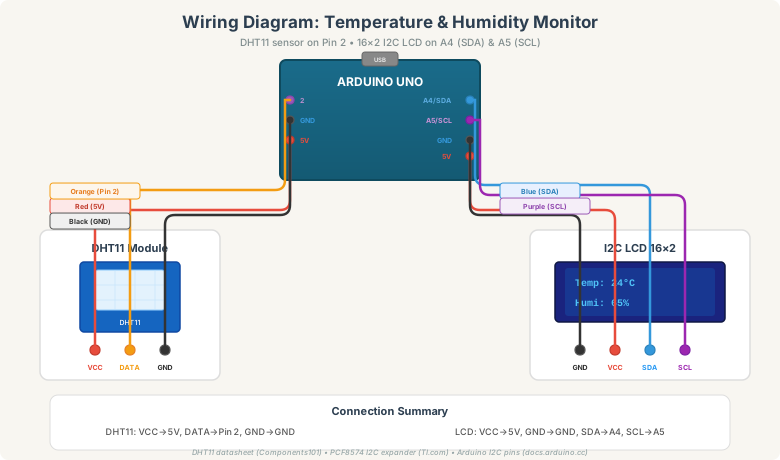
DHT11 sensor (3 wires)
Red wire: DHT11 VCC → Arduino 5V
Orange wire: DHT11 DATA → Arduino Pin 2
Black wire: DHT11 GND → Arduino GND
The pin order on the DHT11 module varies by manufacturer — check the labels printed on the board. The most common order is VCC, DATA, GND (left to right when facing the sensor grid).
I2C LCD (4 wires)
Red wire: LCD VCC → Arduino 5V
Black wire: LCD GND → Arduino GND
Blue wire: LCD SDA → Arduino A4
Purple wire: LCD SCL → Arduino A5
Both the DHT11 and LCD share the same 5V and GND — the Arduino can power both without any issues.
The Code
#include <DHT.h>
#include <LiquidCrystal_I2C.h>

#define DHTPIN 2
#define DHTTYPE DHT11

DHT dht(DHTPIN, DHTTYPE);
LiquidCrystal_I2C lcd(0x27, 16, 2);

void setup() {
  Serial.begin(9600);
  dht.begin();
  lcd.init();
  lcd.backlight();
  lcd.setCursor(0, 0);
  lcd.print("Starting...");
  delay(2000);
}

void loop() {
  float temperature = dht.readTemperature();
  float humidity = dht.readHumidity();

  if (isnan(temperature) || isnan(humidity)) {
    lcd.clear();
    lcd.setCursor(0, 0);
    lcd.print("Sensor error!");
    Serial.println("Failed to read from DHT11");
    delay(2000);
    return;
  }

  lcd.clear();
  lcd.setCursor(0, 0);
  lcd.print("Temp: ");
  lcd.print(temperature, 1);
  lcd.print((char)223);
  lcd.print("C");

  lcd.setCursor(0, 1);
  lcd.print("Humi: ");
  lcd.print(humidity, 1);
  lcd.print("%");

  Serial.print("Temperature: ");
  Serial.print(temperature);
  Serial.print("°C  Humidity: ");
  Serial.print(humidity);
  Serial.println("%");

  delay(2000);
}
How to upload
- Open the Arduino IDE
- Make sure both libraries are installed (see above)
- Go to Tools → Board → Arduino Uno
- Go to Tools → Port and select your Arduino
- Copy the code, click Verify (✓), then Upload (→)
After a couple of seconds, the LCD should light up and display the current temperature and humidity.
Understanding the code
#include <DHT.h> and #include <LiquidCrystal_I2C.h> — Import the two libraries. This gives you access to all their functions.
DHT dht(DHTPIN, DHTTYPE) — Creates a sensor object. You tell it which pin the DATA wire is on (2) and which sensor type (DHT11 vs DHT22).
LiquidCrystal_I2C lcd(0x27, 16, 2) — Creates an LCD object. The first parameter is the I2C address, then the display dimensions (16 columns, 2 rows).
lcd.init() and lcd.backlight() — Initialize the display and turn on the backlight. Without backlight(), the screen may appear blank even though it's working.
dht.readTemperature() and dht.readHumidity() — Read the sensor. These return float values (numbers with decimals). If the sensor can't be read, they return NaN (Not a Number), which is why we check with isnan().
lcd.setCursor(0, 0) — Positions the cursor. The first number is the column (0 = leftmost), the second is the row (0 = top, 1 = bottom).
(char)223 — This is the LCD's built-in degree symbol (°). The LCD has its own character set with special symbols accessible by their numeric code.
delay(2000) — Wait 2 seconds between readings. The DHT11 physically can't produce readings faster than this.
What If the LCD Shows Nothing?
This is the most common issue, and it's almost always one of these:
The backlight is on but the screen is blank. Turn the small blue potentiometer on the back of the I2C module with a screwdriver. This adjusts the LCD contrast. Turn it slowly — the text might be there but invisible at the wrong contrast setting.
Wrong I2C address. If your LCD uses 0x3F instead of 0x27, nothing will display. Upload this I2C scanner sketch to find the correct address:
#include <Wire.h>

void setup() {
  Wire.begin();
  Serial.begin(9600);
  Serial.println("I2C Scanner");
}

void loop() {
  for (byte addr = 1; addr < 127; addr++) {
    Wire.beginTransmission(addr);
    if (Wire.endTransmission() == 0) {
      Serial.print("Device found at 0x");
      Serial.println(addr, HEX);
    }
  }
  Serial.println("Scan complete.");
  delay(5000);
}
Open the Serial Monitor — it will list all I2C devices connected. Use the address it finds in the LiquidCrystal_I2C lcd(...) line.
Nothing at all — no backlight, no text. Check that VCC goes to 5V (not 3.3V — the LCD needs 5V to run) and that GND is connected.
Troubleshooting the Sensor
"Sensor error!" on the LCD.
The DHT11 isn't being read. Check that the DATA wire is on pin 2 and matches DHTPIN in the code. Also make sure you installed the Adafruit DHT sensor library (not a different DHT library — there are several, and they're not all compatible).
Temperature reads 0°C or humidity reads 0%. This usually means the sensor is responding but not getting a valid reading. Check the VCC connection — the DHT11 needs a stable 5V supply.
Readings seem wrong (e.g., 5°C in a warm room). The DHT11 has ±2°C accuracy, but larger errors usually mean a wiring issue or a faulty sensor. Try breathing on the sensor — the humidity should jump noticeably.
Make It Your Own
Add a min/max tracker: Store the highest and lowest temperature readings and display them on an alternating screen.
Temperature alarm: If the temperature exceeds a threshold, blink an LED or activate a buzzer.
Celsius and Fahrenheit: Display both units. The conversion is F = C × 9/5 + 32, or use dht.readTemperature(true) which returns Fahrenheit directly.
Upgrade to DHT22: If you want better accuracy (±0.5°C) and a wider range (−40 to 80°C), swap in a DHT22. Just change DHTTYPE to DHT22 in the code — everything else is identical.
Add a second sensor: I2C lets you add more devices on the same two wires. Try adding a BMP280 barometric pressure sensor alongside the LCD — you won't need any extra pins.
What You Just Learned
This project introduced patterns you'll use in almost every future build. You installed and used external libraries, which is how the Arduino ecosystem works in practice — nobody writes sensor protocols from scratch. You understand I2C communication, a two-wire protocol that lets you connect multiple devices without running out of pins. You learned how to work with a character LCD and control exactly what appears where. You handled sensor errors gracefully, checking for bad readings before displaying them. And you used the Serial Monitor alongside the LCD, giving yourself two output channels for debugging and display.
The combination of a sensor, processing logic, and a display is the core architecture of most embedded systems — from weather stations to industrial monitors. You just built one.
Part of the Arduino for Beginners series. Previous: Understanding the Basics • Your First Blink • LED + Resistor • Auto-Nightlight
Need more tools for sensor projects? See our guide to the best tools for Arduino — from multimeters to logic analyzers.