Your First Real Circuit: LED + Resistor on a Breadboard
In the previous article, you made the Arduino's built-in LED blink using nothing but code and a USB cable. That was your "hello world" moment — pure software controlling a physical thing.
Now we're taking the next step. We're going to move that LED off the board and onto a breadboard, add a resistor to protect it, and wire the whole thing up ourselves. This is where you start building real circuits.
It might feel like a big leap, but here's the thing: you already understand the code from the last article. The only new part is the wiring. And I'm going to walk you through every single connection.
What You'll Need
Your supplies for this project:
- Arduino Uno (or compatible clone)
- USB cable (to connect to your computer)
- Breadboard
- 1 × 5mm red LED
- 1 × 220Ω resistor
- 2 × jumper wires (one orange or red, one black)
If you bought a starter kit, all of these came in the box. If you're purchasing them separately, these are some of the cheapest and most common components in electronics — a few dollars will get you a bag of each.
Now let's get to know these two components before we wire anything.
Meet the LED (Up Close)
LED stands for Light Emitting Diode. A diode is a component that only allows electricity to flow in one direction — which means plugging it in the right way matters.
Take a close look at your LED:
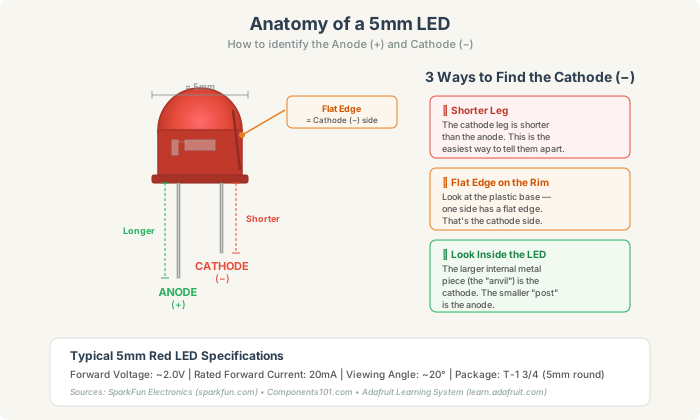
A standard 5mm red LED has a forward voltage of about 2.0V and a rated forward current of 20mA. You don't need to memorize those numbers right now, but they'll matter in a moment when we talk about why we need a resistor.
The key thing to remember: the longer leg is positive (anode), and the shorter leg is negative (cathode). If you can't tell the legs apart (maybe they've been trimmed), look at the base of the LED — one side of the circular rim has a tiny flat edge. That flat edge is always on the cathode (−) side.
If you plug the LED in backwards, it simply won't light up. No damage — just no light. So don't stress about it. Try it one way; if nothing happens, flip it around.
Meet the Resistor
A resistor is probably the most common electronic component in existence. Its job is simple: it resists the flow of electricity. Think of it as a speed bump for current — it slows things down to a safe level.
But how do you know which resistor is which? They all look the same — tiny tan tubes with colored stripes. Those stripes are actually a color code that tells you the resistance value. Let's decode it:
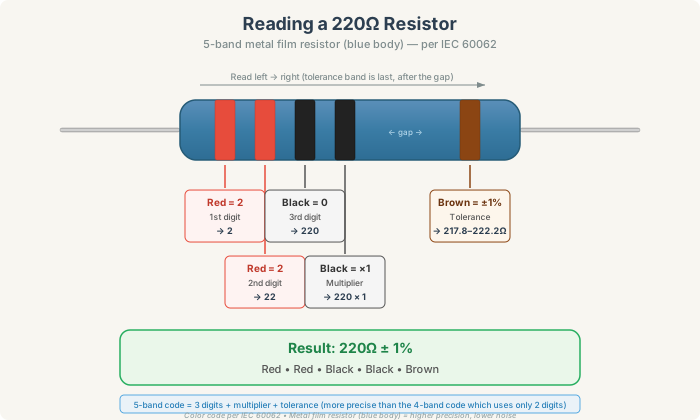
Our 220Ω resistor is a 5-band metal film type — you can tell by its blue body. The five bands read: Red, Red, Black, Black, Brown. The first three bands are digits (2, 2, and 0, giving us "220"), the fourth band is the multiplier (Black = ×1, so 220 × 1 = 220), and the brown band means it has a ±1% tolerance — the actual resistance will be between 217.8Ω and 222.2Ω. That's very precise.
Here's a helpful trick for reading any resistor: find the band that's separated by a gap from the others. That's always the tolerance band (the last one). Read from the opposite end.
You might also come across 4-band resistors (with a tan body), which use just two digits plus a multiplier and typically have ±5% tolerance. The 5-band version in your kit is simply more precise — but both work the same way in your circuit.
Unlike LEDs, resistors have no polarity — they work the same in either direction. One less thing to worry about.
Why Do We Need a Resistor at All?
This is a question every beginner asks, and it's a great one.
When the Arduino sets a pin to HIGH, it outputs 5V. Our red LED only needs about 2.0V to light up and is rated for a maximum current of 20mA. If you connect the LED directly to the Arduino pin without anything to limit the current, too much current will flow through the LED. It might work for a moment, but it will likely burn out — possibly immediately.
The resistor acts as a current limiter. It "uses up" the extra voltage (5V − 2V = 3V across the resistor) and keeps the current at a safe level. With a 220Ω resistor, the current works out to roughly 14mA (using Ohm's Law: I = V/R = 3/220 ≈ 0.014A). That's comfortably under the 20mA maximum — the LED will glow nicely without any risk.
The formula, for the curious: R = (V_supply − V_LED) / I_LED
For a 5V Arduino with a red LED: R = (5 − 2) / 0.02 = 150Ω minimum. We use 220Ω to give ourselves a comfortable safety margin. This is why 220Ω resistors show up in almost every Arduino starter kit.
Wiring It All Up
Here's the moment of truth. Take a look at the wiring diagram:
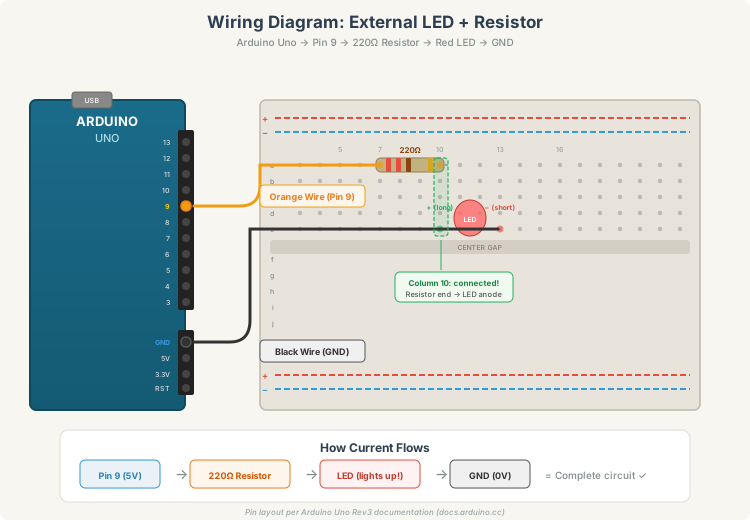
Let's build this step by step:
Step 1 — Place the resistor on the breadboard. Push one leg of the 220Ω resistor into hole a7 and the other leg into hole a10. The resistor now spans across several columns. Remember, it doesn't matter which direction the resistor faces.
Step 2 — Place the LED on the breadboard. Push the longer leg (anode, +) of the LED into hole e10 and the shorter leg (cathode, −) into hole e13. Notice that the anode is in the same column (10) as one end of the resistor — that means they're electrically connected through the breadboard's internal wiring. No jumper wire needed between them.
Step 3 — Connect the Arduino to the resistor. Use a jumper wire (orange or red) to connect Arduino pin 9 to hole a7 (or any hole in column 7, rows a–e). This brings the signal from the Arduino into the circuit.
Step 4 — Connect the LED to ground. Use a black jumper wire to connect Arduino GND to hole e13 (or any hole in column 13, rows a–e). This completes the circuit loop back to the Arduino.
That's it — four steps, two components, two wires.
The Code
Good news — the code is almost identical to what you wrote in the last article. The only change is the pin number (we're using pin 9 instead of the built-in pin 13):
void setup() {
  pinMode(9, OUTPUT);
}

void loop() {
  digitalWrite(9, HIGH);
  delay(1000);
  digitalWrite(9, LOW);
  delay(1000);
}
Upload this sketch to your Arduino the same way you did before: click Verify (✓), then Upload (→).
If everything is wired correctly, your external LED should start blinking — one second on, one second off. You've just built your first real circuit from scratch.
Troubleshooting
If the LED isn't blinking, don't worry. Run through this checklist:
Is the LED in the right way? Try flipping it around. The longer leg (anode) should be on the side connected to the resistor, and the shorter leg (cathode) should be on the side connected to GND.
Are your wires firmly pushed into the breadboard? Sometimes they don't make full contact. Push them in a little deeper.
Is the resistor actually in the circuit? Make sure one end of the resistor shares a column with the jumper wire from pin 9, and the other end shares a column with the LED's anode.
Is the correct pin selected in code? If you used a different pin than 9, update the code to match.
Is the USB cable a data cable? As we mentioned in the previous article, some cables are charge-only and won't upload code.
What You Just Learned
Take a moment to appreciate what you now know:
You can identify the polarity of an LED — longer leg is positive, flat edge marks the negative side. You can read a resistor's color code — Red Red Brown Gold means 220Ω at 5% tolerance. You understand why a resistor is needed — it limits current to protect the LED from burning out. And you can wire a complete circuit on a breadboard — connecting an Arduino pin through a resistor and LED back to ground.
These aren't just Arduino skills. These are foundational electronics skills that apply to every circuit you'll ever build, whether it's a hobby project or a professional prototype.
Experiment Time
Now that it's working, play with it:
Change the blink speed. You already know how — adjust the delay() values.
Try a different pin. Move the orange wire to pin 6, change pinMode(6, OUTPUT) and digitalWrite(6, ...) in the code, and upload again. See? Any digital pin works.
Try a different LED color. If your kit came with green, yellow, or blue LEDs, swap them in. Different colors have different forward voltages (green is ~2.1V, blue is ~3.0–3.4V), but the 220Ω resistor will safely handle all of them at 5V. You'll notice the brightness varies slightly between colors — that's the physics of different semiconductor materials at work.
What's Next
You've now built a one-way circuit: the Arduino sends a signal, and something happens in the physical world. But what about the other direction — what if the physical world could send a signal back to the Arduino?
That's what happens when we add a button. And that's exactly what we'll do next.
This is the third article in the Arduino for Beginners series. Previously: Your First Blink. Next up: adding a push button for interactivity.
Running into problems? Our guide to common Arduino mistakes covers the wiring and code errors that trip up most beginners.